
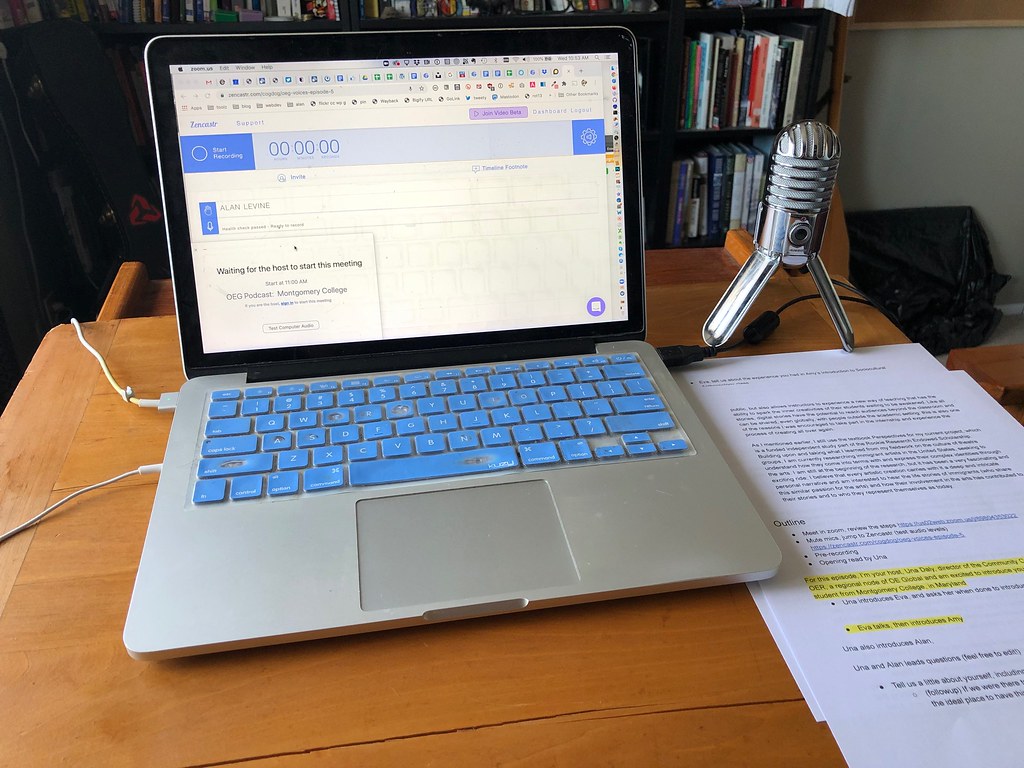
A hum from your laptop fan, an echo off a bare wall, or street noise leaking through a window can quietly ruin an otherwise good podcast recording. The good news: you no longer need a soundproofed studio or expensive plugins to fix it. This guide walks through exactly how to remove background noise from a podcast using free AI tools, in under ten minutes, with no audio-engineering experience required.
How Does AI Remove Background Noise From Audio?
AI noise removal tools work by analyzing the frequency patterns of a recording and separating the human voice from everything else – hums, hiss, room echo, keyboard clicks, or traffic. The AI model, trained on thousands of hours of clean versus noisy speech, applies spectral subtraction to strip out the non-voice frequencies while preserving the natural tone of the speaker’s voice, rather than just muffling everything indiscriminately the way an old-school noise gate would.
How Do You Remove Podcast Background Noise With Adobe Podcast Enhance Speech?
Adobe Podcast’s free Enhance Speech tool is one of the most widely used AI noise-removal options because it requires no installation, no editing skills, and no payment for standard use. Here is the step-by-step process:
Step 1: Open Adobe Podcast Enhance Speech
Go to podcast.adobe.com/enhance and sign in with a free Adobe account. No software download is needed – it runs entirely in the browser.
Step 2: Upload Your Audio File
Upload your raw recording. The free tier accepts files under 500MB and under 30 minutes in length, in common formats including .wav, .mp3, .aac, .flac, .ogg, and .m4a.
Step 3: Turn On Enhance Speech
Make sure the “Enhance Speech” toggle is switched on. This activates the AI noise-removal model, which automatically detects and strips background noise while isolating your voice.
Step 4: Adjust the Enhancement Strength
Depending on your recording, you may see a slider to control how aggressively the AI removes noise. Start around the middle setting – pushing it too high can occasionally make a voice sound slightly processed or robotic.
Step 5: Process and Download
Click “Enhance” and wait – processing typically completes in under 10 minutes even for longer files. Preview the result, and if you’re happy with it, download the cleaned audio ready for editing or publishing.
What Other AI Tools Can Remove Podcast Noise?
Adobe Podcast is a strong free starting point, but a few alternatives are worth knowing if you need more control or want to process audio in batches:
- Descript: Combines noise removal (“Studio Sound”) with full transcript-based audio editing, useful if you also want to edit your podcast by editing text.
- Krisp: Runs noise cancellation live during recording or calls, rather than after the fact, which is useful for live interviews.
- Cleanvoice AI: Focuses specifically on removing filler words, mouth clicks, and background noise in one pass, popular with solo podcasters.
- iZotope RX: A professional-grade option with far more manual control, aimed at audio engineers rather than casual creators.
If you’re building out a full content workflow, pairing clean audio with the right editor matters too – see our roundup of the top AI video editing tools for options that handle both audio cleanup and visual editing in one place.
What Are Common Mistakes When Removing Podcast Noise With AI?
The most common mistake is over-processing: cranking the enhancement to maximum strength on a recording that was already decent, which can introduce a subtle metallic or “underwater” quality to the voice. AI enhancement also works best as a fix, not a substitute for basic recording hygiene – a decent USB microphone and a quiet room will always give the AI model cleaner source material to work with, producing a better final result than trying to rescue a very noisy recording after the fact. It’s also worth processing a short test clip first before running enhancement on an entire hour-long episode, so you can judge the setting before committing.
Frequently Asked Questions
Is Adobe Podcast’s noise removal tool really free?
Yes, Enhance Speech is free for audio files under 30 minutes. Longer files, batch processing, and video enhancement require an Adobe Express Premium subscription.
Will AI noise removal make my voice sound unnatural?
It can if pushed too aggressively on already-clean audio. Most tools let you control the enhancement strength, and a moderate setting typically preserves natural vocal tone while still removing background noise.
Can AI remove noise from a video’s audio track, not just a podcast?
Yes. Tools like Adobe Podcast Enhance Speech and Descript can process the audio track of a video file, which is useful for cleaning up interview or vlog audio before publishing.
Do I still need a good microphone if I use AI noise removal?
Yes. AI enhancement works best on already-reasonable audio. A decent microphone and a quiet recording space will always produce a cleaner final result than trying to fix very poor audio with AI alone.
How long does AI noise removal take to process an episode?
Most tools, including Adobe Podcast Enhance Speech, process a typical podcast episode in under 10 minutes, even for files approaching the maximum length limit.


Pingback: How to Turn a Long YouTube Video Into Shorts With AI - AI Wiky